Log In
Access NMS Match System
You can access the NMS Match System by selecting the Log In button in the top-right corner of the screen.
To log into the NMS Match System for the first time you will need to enter the login credentials provided to you by email by NMS.
-
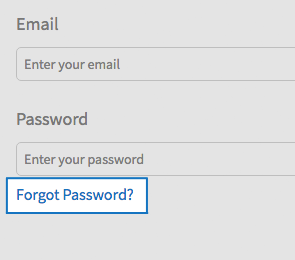
Forgot Password?
If you do not know your password, you can use the Forgot Password? feature available on the NMS Match System login page. If the system does not recognize your email, please contact NMS.
Dashboard
After you log into the NMS Match System you are presented with a Dashboard. The Dashboard provides summary information about your school, access to a list of your registered students, and access to the applications submitted to the residencies affiliated with your school.
List of Registered Students
To view the list of your registered students, select the View button from the Students section of the Dashboard.
Applications to Affiliated Residencies
To access the applications to your programs:
- Log In to the NMS Match System.
- Select the View button from the Applications section of the Dashboard.
- Select a residency site from the list. Only residency sites that are registered for ORMatch are shown in the list.
- The application submitted by each applicant can be downloaded as a PDF document by clicking on the applicant's name.
Applicants may submit an application before all of their reference letters are available. As reference writers submit their letters, the application will be updated to include the letters.
Account Information
The Account page allows you to edit your email address, password and security questions. Only one contact email address is allowed for your school.
Your initial password is assigned to your Account by ORMatch and can be changed if desired. If you change your email or password, you will have to use the new values for subsequent logins to the NMS Match System.
Security questions and answers are not set initially in the NMS Match System, although we recommend you add them.
Ensure your email address is correct, as ORMatch results for your school and other correspondence pertaining to ORMatch will be sent to that email address.
If you are the Director of Residencies as well as the Program Coordinator for a residency site that is registered for ORMatch, your login credentials are the same across all roles. Any changes you make to the Account Information will be made automatically for all of your roles.
Profile Information
Your Profile information includes the school's Display Name, mailing address, name of Director of Residencies, telephone number and fax number.
The Display Name is the name of your school that is shown in displays to students and programs.
The Profile information can be edited, if necessary. You will not be able to make edits to this information after the Rank Order List deadline.
-
Change Profile Information
- Select the Edit button next to the information you want to change.
- Update the information, and press the Save button.
Detailed instructions about the content to be entered into each field can be found by pressing the tooltip icon (?) next to the field name.
Browser Requirements
The online NMS Match System is designed to be used with the security and features of modern web browsers.
-
Browser Requirements
We recommend using the most up to date version of one of the following browsers:
If you access the system with a browser that is not in the list above, or with a browser that is significantly out of date, you may see warning messages and experience problems.
You must have JavaScript enabled and accept cookies for the NMS Match System to function correctly.
